Understanding VPNs
A Virtual Private Network (VPN) is a technology designed to improve online privacy and provide controlled access to digital resources. It works by creating an encrypted tunnel between a user’s device and a remote server operated by the VPN provider. All internet traffic passing through this tunnel is protected from interception, making it more difficult for third parties such as internet service providers, advertisers, or malicious actors to monitor activities. At the same time, the VPN replaces the user’s original IP address with one from its own network, which helps obscure geographic location and identity.
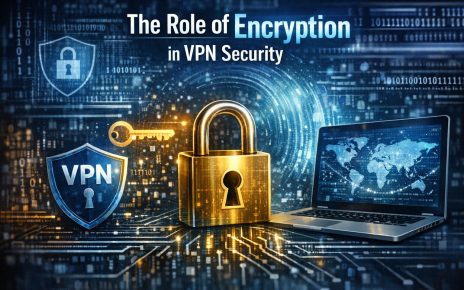
Encryption plays a central role in how VPNs function. Modern VPN services typically rely on protocols such as OpenVPN, WireGuard, or IKEv2/IPSec, each offering different balances between speed, security, and reliability. In practical terms, this means that even if data is intercepted, it cannot easily be read without the appropriate decryption keys. This foundational capability is what makes VPNs useful not only for private individuals but also for businesses managing remote access to internal systems.
Why Use a VPN?
VPN usage has expanded beyond specialized technical environments into everyday browsing. One of the primary reasons for using a VPN is to enhance data privacy. When connected to a public Wi-Fi network, such as those found in airports or cafes, data transmitted without encryption may be vulnerable to interception. A VPN reduces this risk by encrypting traffic before it leaves the device.
Another common use case is bypassing geographic restrictions. Many streaming platforms, websites, or services limit content based on regional licensing agreements or regulatory constraints. By connecting to a server in a different country, users can access content as though they were physically located there. While this does not override all forms of restriction, it provides greater flexibility in accessing global resources.
VPNs also help prevent tracking by masking IP addresses. This does not make users completely anonymous, but it reduces the amount of identifiable data exposed during browsing sessions. For users concerned about targeted advertising or profiling, this can be a meaningful layer of control.
Choosing a VPN Service
Selecting an appropriate VPN service requires consideration of several technical and operational factors. Not all VPN providers offer the same level of performance or privacy safeguards. One of the most important aspects is the security protocols supported by the service. Protocols like WireGuard are known for speed and efficiency, while OpenVPN is widely regarded for stability and security.
Another critical factor is the provider’s logging policy. Some VPN services claim to maintain no logs of user activity, while others may store limited connection data. Reviewing independent audits or transparency reports can help determine whether these claims are credible. A strict no-logs policy reduces the likelihood that user data could be shared or compromised.
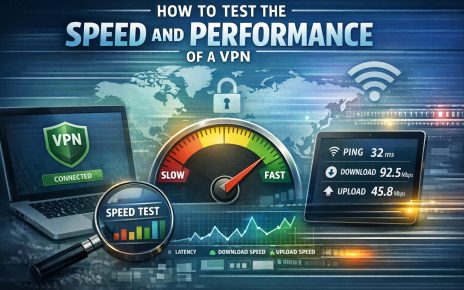
The number and distribution of server locations also influence performance and accessibility. A broad network of servers allows users to select locations closer to their actual region for faster speeds or farther away for accessing specific content. Additionally, connection speed is affected by server load, infrastructure quality, and protocol efficiency. High-quality providers typically invest in optimized networks to minimize latency and bandwidth loss.
Comparison of VPN Options
Before choosing a VPN, it is useful to review detailed specifications and pricing structures on official provider websites. Services such as ExpressVPN, NordVPN, and CyberGhost present different combinations of features, subscription plans, and performance levels. Some emphasize ease of use and automation, while others provide advanced configuration options for experienced users. Evaluating these differences helps ensure that the selected service aligns with specific requirements.
Setting Up a VPN on Different Devices
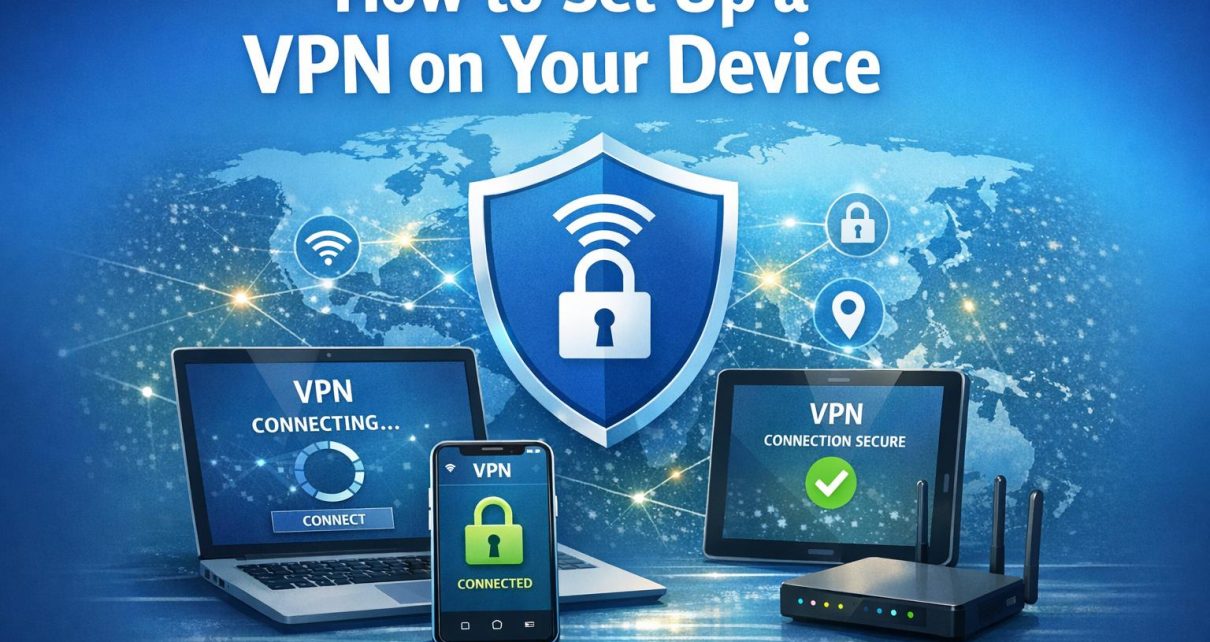
The setup process varies slightly depending on the operating system and device type, but most modern VPN services aim to simplify installation through dedicated applications. These applications are designed to handle configuration automatically, reducing the need for manual network adjustments.
Setting Up a VPN on Windows
On Windows systems, the process typically begins by downloading the VPN client from the provider’s official website. After installation, users launch the application and log in with their account credentials. The interface usually displays a list of available server locations along with a quick-connect option. Selecting a server and clicking Connect establishes the encrypted connection. Advanced settings may allow users to switch protocols or enable additional features such as a kill switch, which disconnects internet access if the VPN connection drops.
Setting Up a VPN on macOS
The setup process on macOS is similar in structure. Users download the macOS-compatible application, install it, and authenticate their account. The application integrates with the system’s network settings, allowing seamless connection management. Once connected, the VPN icon typically appears in the system status bar, providing quick access to connection status and server selection. macOS users may also configure VPN connections manually through system preferences, although this approach requires more technical input.
Setting Up a VPN on Android
For Android devices, VPN applications are distributed through the Google Play Store. After installation, users open the app, log in, and grant necessary permissions. Android systems may prompt users to approve the creation of a VPN connection, which is required for the app to function. Once approved, connecting to a server is usually a one-step process. Many Android VPN apps include features such as automatic connection on unsecured networks and configurable protocol settings.
Setting Up a VPN on iOS
On iOS devices, VPN apps are available in the App Store. After downloading and installing the app, users sign in and allow the system to add VPN configurations. iOS requires explicit permission for VPN connections, which ensures that changes to network routing are visible to the user. Once configured, the VPN can be activated directly from the app or through system settings. The interface typically prioritizes simplicity, offering quick connection options with minimal configuration.
Verification and Troubleshooting
After installation, verifying that the VPN is functioning correctly is an important step. This can be done by checking the device’s public IP address using an online tool and confirming that it reflects the selected server location rather than the user’s original IP. Consistency in IP address changes indicates that the VPN is routing traffic as expected.
If issues arise, several troubleshooting steps can improve connectivity. Switching to a different server may resolve performance or access problems, especially if the current server is congested. Restarting the application or device can address temporary software conflicts. Keeping the VPN client updated ensures compatibility with the latest operating system updates and security improvements.
In some cases, network restrictions or firewalls may interfere with VPN connections. Adjusting protocol settings, such as switching from UDP to TCP, can improve stability in restrictive environments. Reviewing provider documentation can also help identify known issues and recommended solutions.
Conclusion
Setting up a VPN involves straightforward steps across most platforms, supported by user-friendly applications and automated configuration. By establishing an encrypted connection and masking IP addresses, VPNs provide a practical method for enhancing privacy and expanding access to online content. Careful selection of a provider, combined with proper installation and verification, allows users to maintain consistent and secure internet usage across devices.