
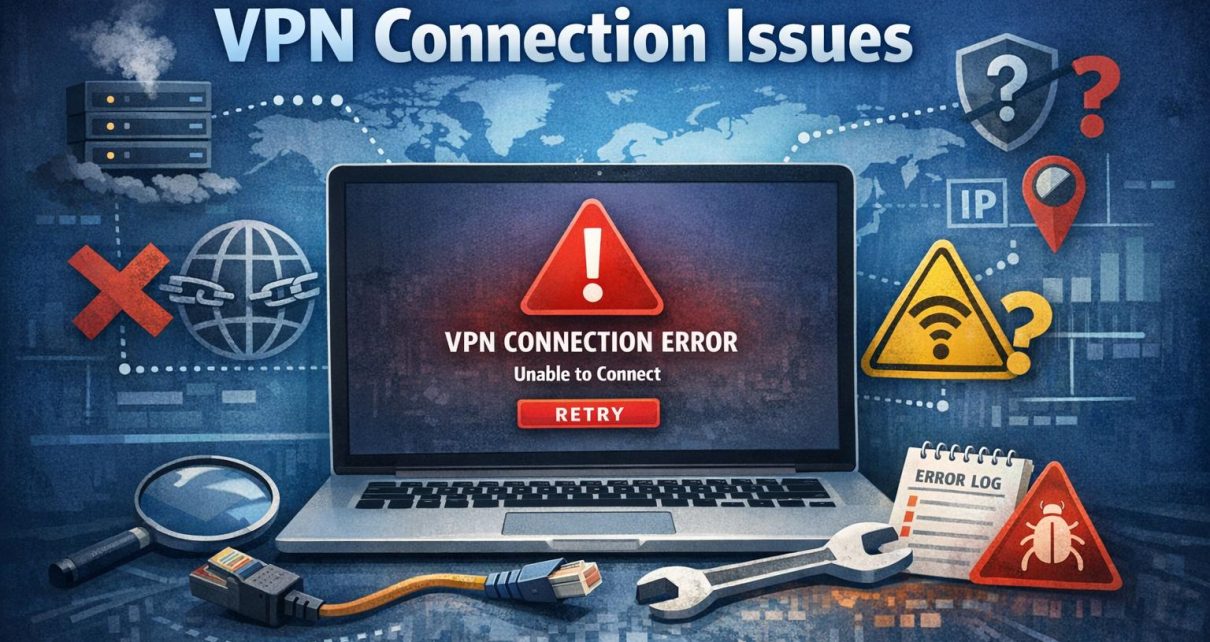
Understanding VPN Connection Issues
Virtual Private Networks (VPNs) play a central role in maintaining privacy, securing sensitive data, and allowing access to geographically restricted content. Despite their usefulness, VPN connections are not immune to disruption. Users may experience slow speeds, dropped connections, or complete inability to connect. These issues are not always complex, but they often require a structured approach to diagnose and resolve. Understanding how VPNs interact with devices, networks, and security systems can significantly improve the ability to restore a stable connection.
VPNs function by creating an encrypted tunnel between a user’s device and a remote server. This process depends on multiple components working correctly, including internet connectivity, authentication credentials, software configuration, and network compatibility. A failure in any of these areas can interrupt the connection.
Common VPN Connection Problems
VPN connection issues often stem from a set of recurring causes. Recognizing these patterns allows users to narrow down potential problems more efficiently and apply appropriate fixes without unnecessary trial and error.
Internet Connectivity Problems
A reliable internet connection is the foundation of any VPN service. If the base connection is unstable or unavailable, the VPN cannot establish a secure tunnel. Users should begin troubleshooting by disconnecting the VPN and checking whether websites load normally. If there is no connectivity even without the VPN, the issue lies with the internet service provider, router, or local network configuration.
Even when the internet appears to be working, intermittent disruptions or high latency can interfere with VPN performance. Public Wi-Fi networks, for instance, often impose restrictions or have unstable bandwidth, which can prevent VPN connections from completing successfully.
Incorrect Login Credentials
Authentication errors are a frequent but straightforward cause of VPN connection failure. Entering an incorrect username or password prevents the VPN server from granting access. This issue may also arise if an account has expired or if multi-factor authentication is enabled but not completed correctly.
Users should verify credentials carefully and ensure that there are no typographical errors. In cases where login information is forgotten, most providers offer account recovery or password reset options. It is also important to confirm that the subscription or account is still active.
Protocol Mismatches
VPN protocols determine how data is transmitted and secured. Common protocols include OpenVPN, L2TP/IPSec, PPTP, and newer options such as WireGuard. Each protocol has different performance characteristics and levels of compatibility with networks.
Some networks block specific protocols due to security policies or firewall rules. For example, corporate or institutional networks may restrict certain ports required by VPN protocols. Switching to a different protocol within the VPN application can often resolve connectivity issues, as some protocols are better suited to restrictive environments.
Troubleshooting Steps
When encountering VPN issues, it is useful to follow a sequence of logical troubleshooting steps. Addressing potential causes in a systematic manner reduces confusion and increases the likelihood of identifying the root problem.
Update VPN Software
Outdated VPN software can cause compatibility issues with operating systems or network configurations. Updates typically include bug fixes, improved encryption methods, and enhanced server compatibility. Running an older version of the software may result in failed connections or reduced performance.
Users should check for updates through the VPN application or download the latest version from the provider’s official website. Keeping the operating system updated is also important, as system-level changes can affect how VPN clients function.
Check Firewall and Security Software
Firewalls and antivirus programs are designed to protect systems, but they can inadvertently block VPN traffic. These tools may interpret VPN activity as suspicious or unauthorized, especially if the VPN uses uncommon ports or protocols.
Reviewing firewall settings to ensure the VPN application is allowed can resolve this issue. In some cases, temporarily disabling the firewall or antivirus software can help determine whether it is the cause of the problem. If the VPN connects successfully after disabling these tools, users can then adjust settings to allow VPN traffic without compromising overall security.
Verify Server Availability
VPN services rely on a network of servers distributed across different regions. Occasionally, individual servers may experience downtime, maintenance, or excessive load. Attempting to connect to a congested or unavailable server can result in connection timeouts or slow performance.
Switching to a different server within the same region, or selecting a nearby alternative location, can often restore connectivity. Many VPN applications display server load or latency indicators, which can help users choose a more reliable option.
Advanced Troubleshooting
When basic troubleshooting does not resolve the issue, more detailed investigation may be required. These steps involve examining network configurations and reviewing diagnostic information to identify less obvious causes.
Examine Network Configuration
Network settings such as DNS, IP assignment, and gateway configuration can affect VPN functionality. Misconfigured DNS servers may prevent domain resolution, making it appear as though the VPN is not working even when it is connected.
Switching to a public DNS service, such as Google DNS (8.8.8.8 and 8.8.4.4), can help resolve these issues. Additionally, users should ensure that there are no conflicting VPN adapters or legacy configurations remaining from previous installations. Resetting network settings or reinstalling the VPN client can sometimes clear persistent problems.
Router settings can also play a role. Some routers include built-in firewalls or VPN passthrough settings that must be enabled for proper operation. If multiple devices on the same network experience VPN issues, the router may be the source of the problem.
Review Log Files
VPN applications typically maintain log files that record connection attempts, authentication results, and error messages. These logs can provide detailed insight into what is failing during the connection process.
For example, logs may reveal issues such as handshake failures, authentication errors, or blocked ports. By examining this information, users can identify patterns or recurring errors. Sharing these logs with the VPN provider’s support team can facilitate more precise troubleshooting and faster resolution.
Conclusion
Resolving VPN connection issues requires a structured and informed approach. Most problems originate from a limited set of causes, including connectivity issues, incorrect credentials, protocol incompatibility, or software conflicts. By systematically testing each component—starting with basic checks and progressing to more advanced diagnostics—users can often restore functionality without extensive technical expertise.
Persistent issues may require assistance from the VPN provider or input from broader communities such as online forums. Maintaining updated software, understanding network behavior, and applying methodical troubleshooting techniques can significantly reduce downtime and ensure a consistent, secure VPN experience.