Introduction
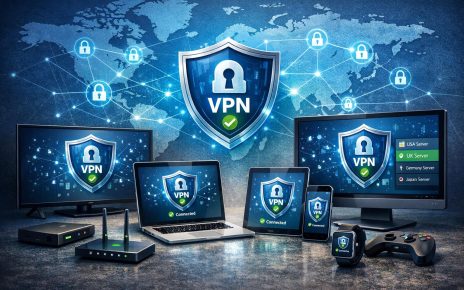
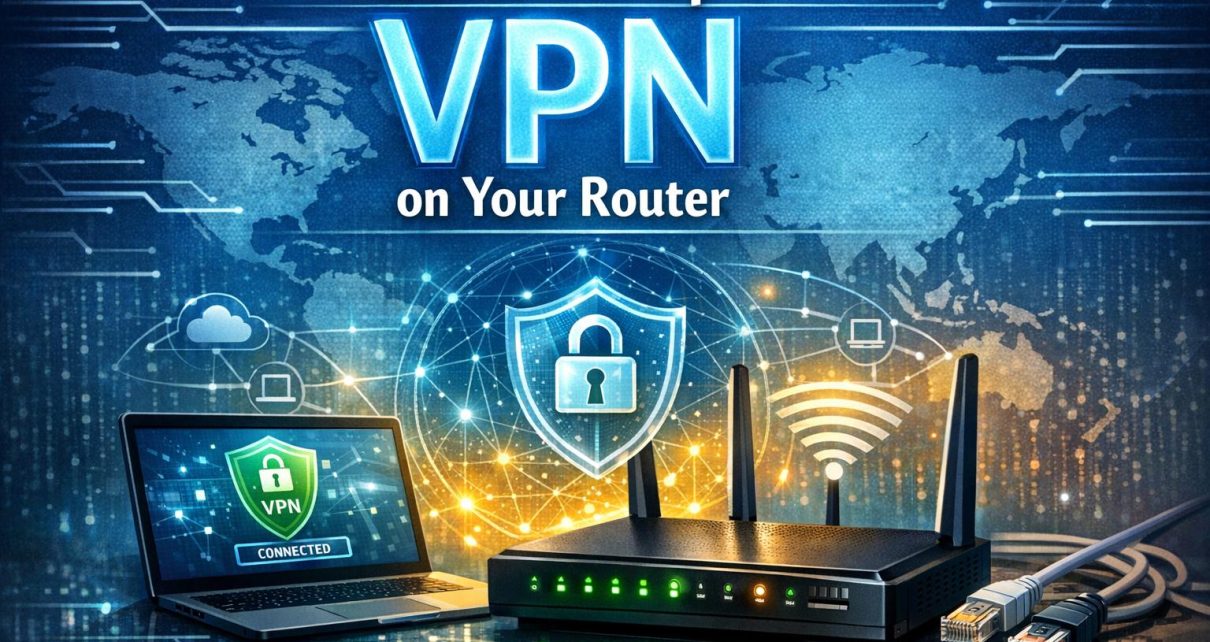
Setting up a Virtual Private Network (VPN) on your router can significantly enhance your online privacy and security. Instead of configuring each device individually, a router-level VPN applies encryption and routing rules across your entire network. This means that computers, smartphones, smart TVs, gaming consoles, and even Internet of Things devices benefit from a unified layer of protection.
In a typical home or office environment, multiple devices connect to the same router. Without a centralized solution, each device would require separate VPN software, configuration, and maintenance. A router-based VPN simplifies this process by acting as a single point of control. As a result, users can ensure consistent privacy standards while reducing administrative overhead.
Why Set Up a VPN on Your Router?
There are several advantages to setting up a VPN on your router. These benefits extend beyond basic privacy and contribute to improved network management and usability.
Comprehensive Security: When a VPN is configured at the router level, all outgoing and incoming traffic is routed through an encrypted tunnel. This reduces the risk of data interception and protects sensitive information, especially when using unsecured networks.
Convenience: A single configuration can cover all devices connected to the network. This is particularly useful for devices that do not natively support VPN applications, such as certain smart home appliances or streaming devices.
Unlimited Connections: Most VPN service providers limit the number of simultaneous device connections. A router-based setup bypasses this limitation by treating all connected devices as a single connection.
Consistent Location Masking: All devices appear to access the internet from the same VPN server location. This can be useful for maintaining consistent access to region-specific services or content.
Preparation
Before beginning the setup process, it is important to ensure that both your hardware and service provider support router-based VPN configurations. Preparation reduces the likelihood of compatibility issues during installation.
Selecting a VPN Service
1. A VPN Service: Choose a provider that explicitly supports router installations. Not all VPN services offer this functionality, and some may require manual configuration files. Look for providers that support common protocols such as OpenVPN, WireGuard, or L2TP/IPsec. Additionally, verify whether the provider offers configuration guides tailored to different router models.
Performance is another important factor. Since all network traffic will pass through the VPN, a provider with fast servers and minimal downtime is essential to maintain usability.
Checking Router Compatibility
2. A Compatible Router: Routers vary significantly in their capabilities. Some modern routers include built-in VPN client support, while others do not. If your router lacks this feature, installing custom firmware may be an option. Firmware such as DD-WRT, OpenWRT, or Tomato can add advanced networking features, including VPN support.
However, installing custom firmware carries some risk. It may void warranties or render the device unusable if not done correctly. Users should consult official documentation and ensure that their specific router model is supported before proceeding.
Gathering Configuration Details
Before accessing your router settings, collect all necessary information from your VPN provider. This typically includes server addresses, authentication credentials, encryption settings, and configuration files. Having this information ready can streamline the installation process.
Setting Up the VPN on Your Router
Accessing the Router’s Admin Interface
- Connect your computer to the router using an Ethernet cable. A wired connection reduces the chance of interruptions during setup.
- Open a web browser and enter the router’s IP address, such as 192.168.1.1 or 192.168.0.1. This address is often printed on the router or listed in its documentation.
- Log in using administrator credentials. If these have not been changed, default credentials may still be active, which should be updated for security reasons.
Navigating the VPN Settings
Once logged in, locate the VPN section within the router’s interface. The naming and placement of this section differ across manufacturers. It may appear under advanced settings, network settings, or security options.
Some routers distinguish between VPN client and VPN server modes. For this setup, ensure you are configuring the router as a VPN client, which connects to an external VPN service.
Entering Configuration Details
- Input the server address provided by your VPN service.
- Enter your username and password or upload authentication certificates if required.
- Select the appropriate protocol and encryption settings. OpenVPN is commonly recommended due to its balance of security and performance.
- Apply any additional settings such as DNS configurations or kill switch options if supported.
After entering all required information, save the configuration and initiate the connection. The router may take a few moments to establish the VPN tunnel.
Optional Advanced Settings
Some routers provide advanced options that allow more granular control. For example, users can configure split tunneling, which routes only specific traffic through the VPN while leaving other traffic unaffected. This can improve performance for activities that do not require encryption.
Another option is setting up multiple VPN profiles. This allows quick switching between different server locations without re-entering configuration details.
Testing and Troubleshooting
After completing the setup, verifying that the VPN is functioning correctly is essential. This ensures that traffic is properly encrypted and routed.
First, check your public IP address using an online tool. The displayed location should match the VPN server rather than your physical location. If the IP address has not changed, the VPN connection may not be active.
Next, test multiple devices connected to the network. Each device should reflect the same VPN location. If some devices are not affected, review the router’s configuration to ensure the VPN is applied network-wide.
If connectivity issues arise, consider the following possibilities:
Incorrect Credentials: Verify that login details and server addresses are entered correctly.
Protocol Mismatch: Ensure that the selected protocol matches the one supported by your VPN provider.
Performance Limitations: Encrypting all traffic can reduce network speed, particularly on lower-end routers. Upgrading hardware may be necessary for optimal performance.
Firmware Issues: If using custom firmware, confirm that it is properly installed and up to date.
Consulting documentation from both the router manufacturer and VPN provider can provide additional guidance for resolving issues.
Maintenance and Best Practices
Maintaining a router-based VPN involves periodic checks and updates. Firmware updates can improve security and compatibility, while VPN providers may update server configurations or credentials.
It is also advisable to periodically test the VPN connection to ensure it remains active. Some routers offer automatic reconnection features, which help maintain continuous protection in case of interruptions.
For environments with higher security requirements, consider combining the router VPN with additional measures such as secure DNS services or network monitoring tools.
Conclusion
Setting up a VPN on your router provides a centralized and efficient way to secure all devices on your network. While the process requires careful preparation and attention to configuration details, the long-term benefits include improved privacy, simplified management, and broader device compatibility.
By selecting a compatible router, choosing a reliable VPN provider, and following structured setup steps, users can establish a stable and secure network environment. Regular testing and maintenance help ensure that the VPN continues to function as intended over time.